How to setup & send encrypted emails in 365 webmail
Quickly set up and start sending encrypted email with any office 365 subscription.
How to setup office 365 email encryption...
- 1. Login to your office 365 online portal (https://login.microsoftonline.com)
- 2. In the left pane expand billing → click purchase services
- 3. Using the search bar type "information protection"
- 4. Select Azure Information Protection
- 5. Proceed to checkout (£1.51 Per User Per Month)
- 6. Select the number of licenses and complete checkout

Assign Azure information protection to 365 users...
- 1. Once the checkout process is finished use the left pane to go to Users → Active Users
- 2. Select any user → go to Licenses and Apps → tick the Azure Information Protection box and click save changes

Sending encrypted email in office 365 webmail...
- 1. Sign in to your office 365 webmail (https://login.microsoftonline.com)
- 2. Click on the Outlook icon if it doesn't open straight away
- 3. Once in Outlook click "new message"
- 4. Use the "open in new window" button
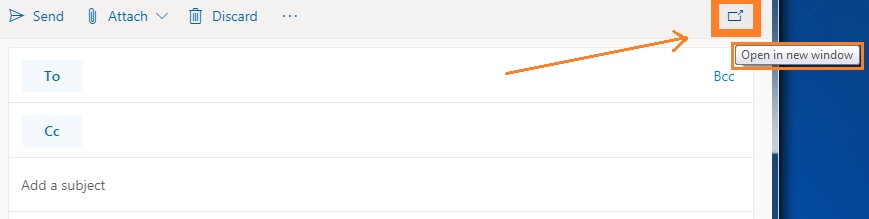
- 5. You can now see the Encrypt icon
- 6. Compose your email, select Encrypt and send

How do 365 encrypted emails look to the receiver...
To the receiver particularly if they are unaware that they will be receiving an encrypted email they can look a bit spammy and very similar to many phishing emails.

So, it's a good idea if sending to someone for the first time to warn them that your email will be encrypted and that they will need to go through various additional steps to read the email.
Encrypted emails sent in office 365 can be opened by signing in with most major providers, Microsoft, Google (gmail), Yahoo!.


During a test run, sending a simple test message to my gmail account the encrypted email was delivered to my spam folder, so I had to mark the message as not spam to proceed. When using 365 encryption it's worth warning customers to check their spam folders when receiving for the first time.
gorazy.com open internet promise...
We believe in a free and open internet. Our users are never and will never be tracked! You will never see pointless annoying pop-ups or be asked to allow notifications. If you like the sound of an internet more like this share the message.