Outlook 2016/2019 Change OST file location
How to change Outlook OST file
location in Outlook 2016/19...
Scenario:
Your C drive is running low on space and you have a massive OST file you would like to move to another drive on your PC/laptop.
You've noticed that the old way of relocating an OST file no longer works in the newer versions of Outlook 2016/2019.
Quick warning...
This fix includes editing in the registry, please be careful! This fix will mean you need to re-setup your email account once the registry has been changed to force the new location.
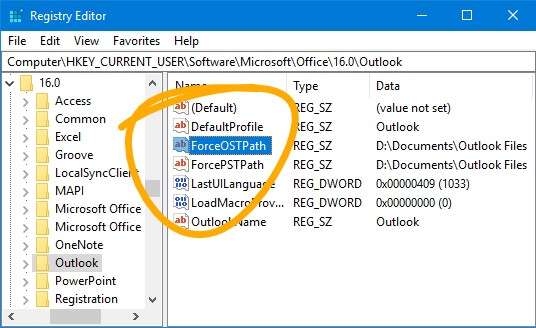
Step by step...
- Using the Windows 10 search bar type regedit
- Click to launch registry editor
- Click yes on the warning to proceed
- Expand to HKEY_CURRENT_USER\Software\Microsoft\Office\(version)\Outlook
- Version will be either 16.0 or 19.0
- Right click some empty space on the right hand side
- Click new → string value
- Rename the new value to ForceOSTPath
- Right click ForceOSTPath → click modify
- Change the value data to where you would like the OST file to be located
- Example D:\Documents\Outlook Files
- Close registry editor and re-setup your Outlook account
gorazy.com open internet promise...
We believe in a free and open internet. Our users are never and will never be tracked! You will never see pointless annoying pop-ups or be asked to allow notifications. If you like the sound of an internet more like this share the message.